
The same image can find its way into a media library more than once: first for one article, then under another name, and again when someone cannot find the file already uploaded. When those copies are used in different articles, cleaning up also means updating their references. In RenewCMS, merging duplicates brings those uses together on a single image.
In this demo, three identical files are each used in a different article. Here is the workflow, from finding the copies to checking the articles after cleanup.
Find identical images
The Duplicates tab groups identical files in the media library. Each copy shows its filename, upload date and the number of articles that use it. The names can differ: RenewCMS compares the exact file contents using their SHA-256 fingerprint.
In our example, exploration.jpg, exploration-copy.jpg and exploration-final.jpg contain the same image. Each file is used in a separate article, so the group shows both the duplicate files and the uses that need to move to the kept copy.
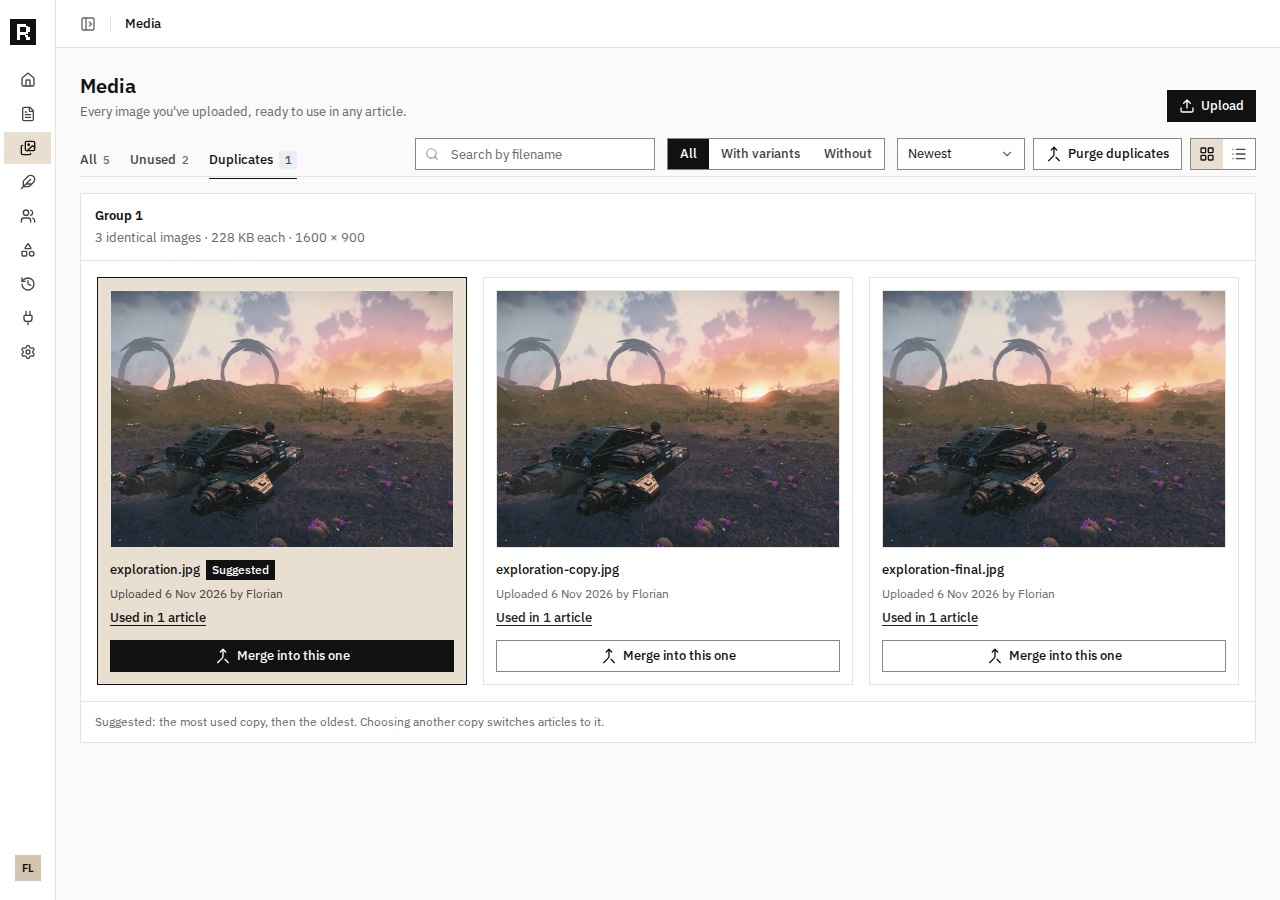
Three filenames, identical contents and three articles using the copies.
Understand which copy will be kept
The view suggests the most used copy, with the oldest chosen when usage counts are equal. The merge buttons also let you choose a different copy to keep for an individual group.
The demo uses the bulk cleanup action, “Purge duplicates”. This workflow applies the selection rule automatically. It processes groups where at least one copy is used in an article; a group made up entirely of unused images is left alone.
Review the summary before confirming
Before running the purge, RenewCMS shows what will change. In this example, the summary lists one group, two copies to delete and two articles to update. The article already using exploration.jpg keeps its reference; the other two will use that same image.
The summary also shows the file that will be kept. This is the point to check the expected result: merging removes the other copies and cannot be undone. If the media library changes between the preview and confirmation, RenewCMS asks you to review a new summary.
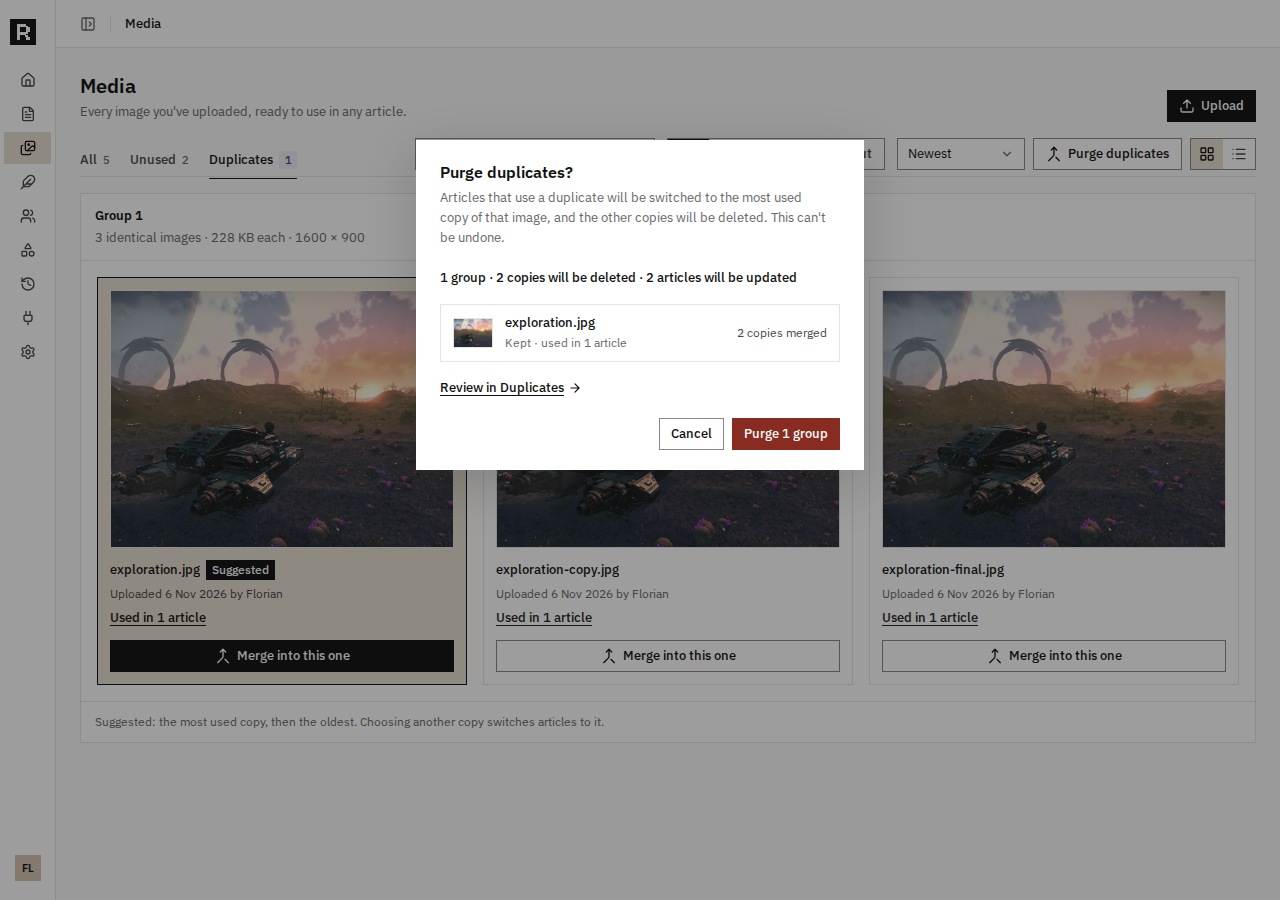
A summary identifies the kept image and the planned changes before cleanup.
Bring all three uses onto one image
After confirmation, the group disappears from the Duplicates tab. The library goes from five images to three: exploration.jpg and the two other demo images that were outside the duplicate group.
Opening the details for exploration.jpg now shows all three articles in its usage list. RenewCMS has replaced the references to the removed copies in the affected articles. There is no need to reopen each article and select the right image manually.
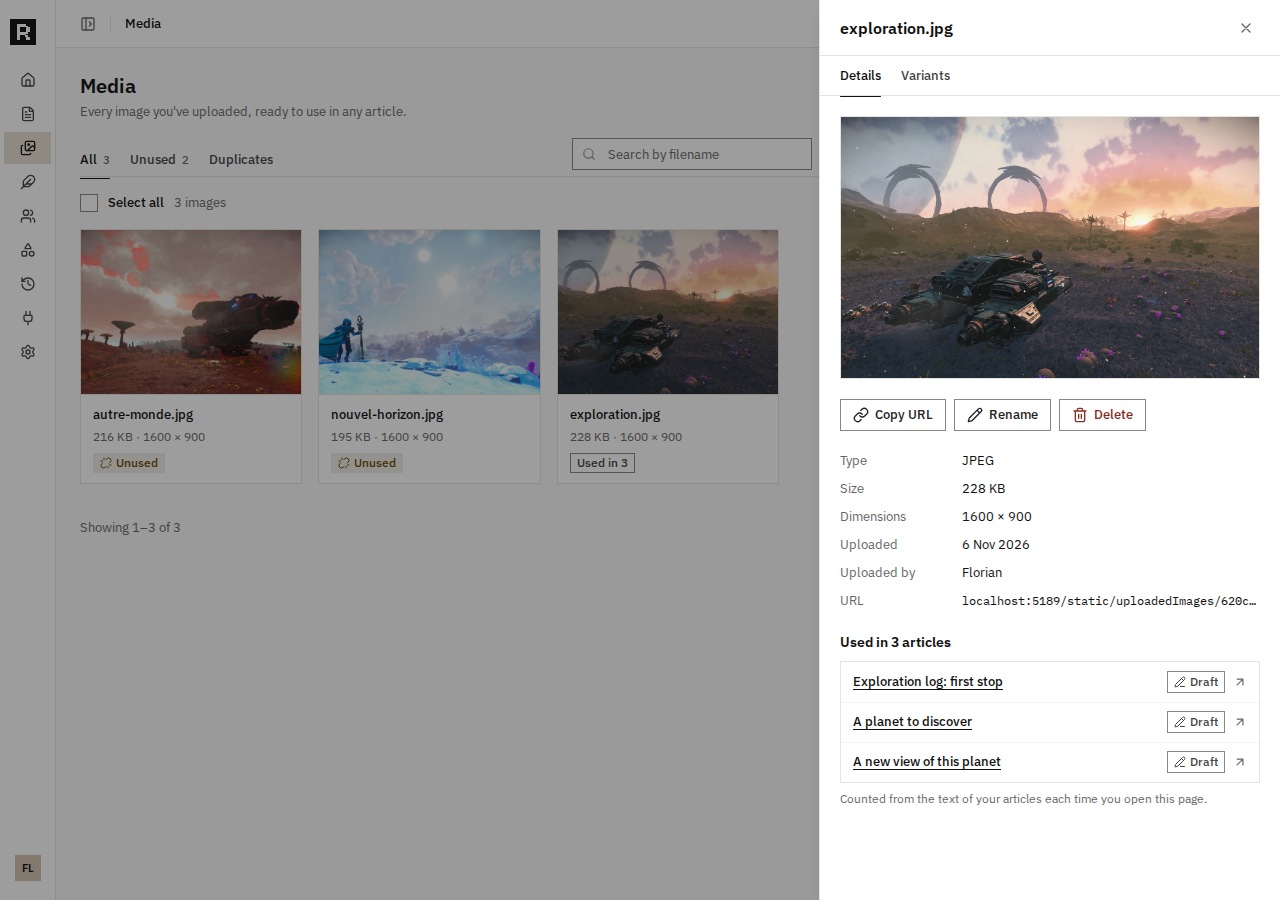
One image in the library, with all three uses listed together.
Reopen the articles to check the result
From that list, I open the two articles that used the removed copies and switch on the editor preview. Their image still displays. The saved references now point to the kept file, so we can check the result beyond the duplicate counter alone.
These articles are drafts in an isolated demo instance. The workflow demonstrates the merge and the saved content updates without publishing those articles.
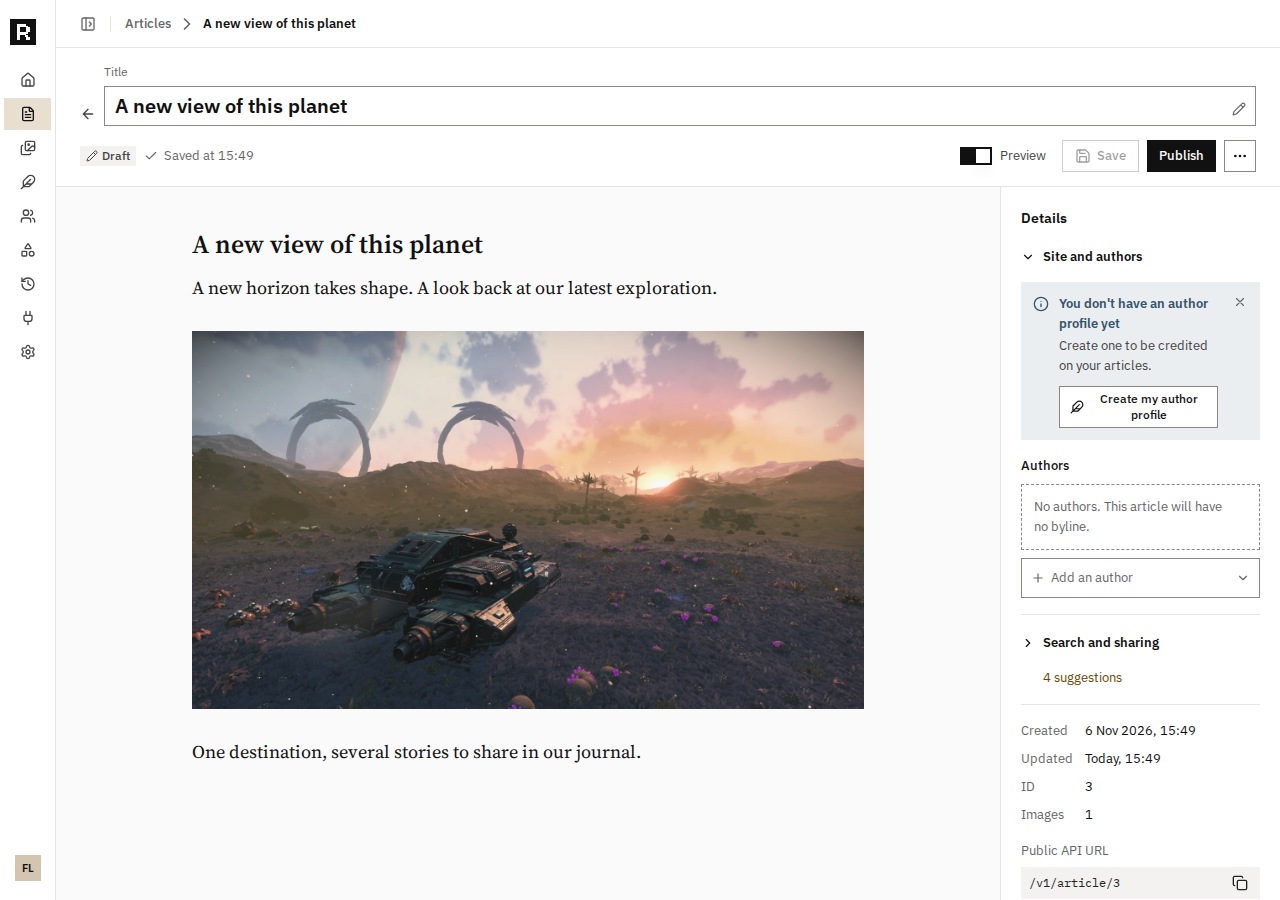
One of the two updated articles, reopened in the editor preview after merging.
Identical files, even with different names
This detection is for files with identical contents. Cropping, resizing or recompressing a photo changes those contents, so it will not be grouped by visual similarity. Generated variants for covers and thumbnails have their own cache management.
For the next part of the media workflow, the previous Journal article covers image variants and cache cleanup in RenewCMS. The two features serve complementary purposes: bringing identical copies together and tracking the generated versions of your images.